It depends on which kind of bot you mean. If it's a grid you switch on inside an exchange's app or website, the exchange's system places the orders and you don't need to leave a computer running. If it's a program you download and give an API key to so it can place orders for you, the machine it's installed on has to stay powered on and online.
Only the second kind raises the question of your own computer versus a rented VPS, and for me it turns on the API key's IP restriction. A system-generated Binance key with no IP restriction has read permission only, and what Binance recommends is adding an IP access restriction to the key. Whether your home connection's public IP stays fixed is something you have to check yourself. If it changes every few days, renting a VPS is the easier option, provided you've checked both the exchange's terms and the host's terms. If it stays the same over the long term and the computer can stay on, you don't need to rent one.
With an exchange's built-in grid bot, the exchange's system places the orders
Binance's spot grid page (checked October 2026; the page is marked Updated 2026-08-13) puts it this way: “The system will automatically place buy or sell orders at preset prices.” By that sentence, it's Binance's system that places the orders, not a program on your computer. What you do in the app is set the grid up.
For recurring buys, futures grids and the same kind of product at other exchanges, the test is the same: read the exchange's own page for the product and see who actually places the orders. If you haven't settled on an exchange yet, there's a separate post on what to compare when picking an exchange. There's also a shortcut. An API key exists so that programs outside the exchange can access your account, so if a bot never asked you to generate one at any point from setup to running, whatever is placing the orders isn't a program on your computer.
Not needing an always-on machine doesn't change the risk of losing money. The bot only places orders by the rules you set, and if those rules lose money in some stretch of the market, it loses right along with them.
Bots and alert scripts you run yourself stop when the machine does
An always-on machine is only needed when you're the one running the program. The two common cases:
- An open-source bot you run yourself. You download a trading program from a code hosting site and put your API key into its configuration. It checks prices on a schedule and places and cancels orders through the API.
- A price alert script. It only reads market data and sends a notification when the price reaches a level you set. It places no orders.
If the computer shuts down, goes to sleep or drops offline, or the program quits on its own, the program stops checking prices and placing orders, and nothing is left watching the orders that are already open. Say you set a rule to cancel your orders if the price falls to a certain level, and the price gets there during the few hours the computer is asleep. That rule doesn't get executed.
What Binance and OKX do with an API key that has no IP restriction
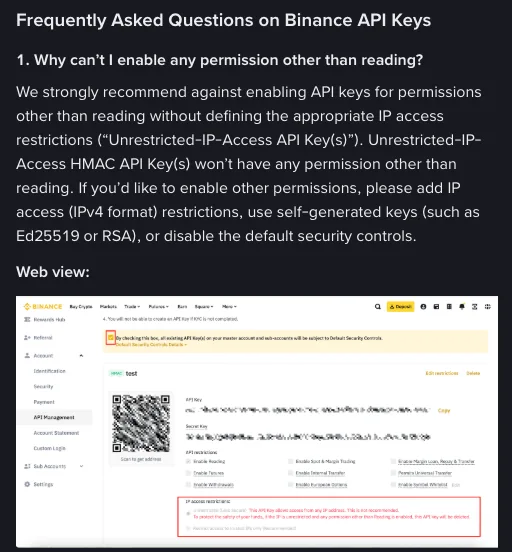
Binance's rule is in its guide to creating API keys (checked October 2026; the page is marked Last updated 20 March 2025): “Unrestricted-IP-Access HMAC API Key(s) won't have any permission other than reading.” A system-generated key with no IP restriction can only be set to “Enable Reading,” effective from 2023-01-30 00:00 (UTC). A read-only key can look up the account. It can't place an order.
To turn on other permissions, the page gives three routes: add an IP access restriction (IPv4 format, commonly called an IP whitelist), switch to a self-generated key (Ed25519 or RSA), or turn off the default security controls. Binance strongly advises against enabling anything beyond reading without an IP restriction, and enabling withdrawals requires one.
OKX handles it differently. Its API FAQ (checked October 2026; the page is marked Updated on Sep 28, 2026) says an API key that has trading or withdrawal permissions and no linked IP is “automatically deleted after 14 days of inactivity.” According to that page, calling a private endpoint that requires authentication counts as activity. Both rules are quoted from the binance.com and okx.com help pages. If your account is on a different site, read that site's own pages.
How I'd set up a key for a bot
- Turn on two-factor authentication (2FA) for the account before creating the key. Binance's guide recommends the same.
- Select only the permissions the program uses: reading, plus the one type of trading it's going to do. Leave the rest unselected.
- Leave withdrawals off. A program that places orders has no use for them, and with that permission off, someone who gets hold of the key can't use it to start a withdrawal.
- In the IP access restriction, enter the public IP of the machine the program runs on. Don't leave it blank.
- The key and secret go only into the configuration on the machine running the program. Don't send them to anyone, and that includes anyone claiming to be customer support or offering to host the bot for you.
- The program itself can read the key and secret you put into it, so don't give a key with trading permission to a program if you can't tell where it came from.
Leaving withdrawals off doesn't block every risk. If a key with trading permission ends up in someone else's hands, they can still place orders with the money in your account. On a VPS, the machine's remote login password needs the same care as the key. Fake support agents, managed accounts and similar ways of taking control away from you are broken down in the crypto scams beginners run into most.
Your own computer or a rented VPS: four points compared
A VPS is a virtual server you rent from a hosting company. It sits in a data center, you pay by the month or by the year, and you operate it by remote login. Compared with a computer at home, it differs on four points:
| Point | Your own computer | Rented VPS |
|---|---|---|
| Going offline | A shutdown, sleep, a restart for an update, or a power or internet outage at home all stop the program; it depends on your settings and on the power and connection at home | Not affected by the power and internet at your home; whether the data center end gets interrupted depends on the host, and you need to read its terms and notices yourself |
| Static IP | You have to check whether it's fixed; how to check is below the table | Confirm on the order page that the plan comes with a static public IPv4 address (Binance's IP restriction needs IPv4 format); if the host changes the IP, you have to update it at the exchange as well |
| Cost | No rental fee; the electricity cost is yours to work out | Whatever the host's order page lists; the entry-level plan in the example below is $49.99 a year (listed price, October 2026) |
| Getting started | Install the program on the system you already use, then turn off sleep and automatic restarts | You need to know how to log in remotely, and in most cases you set up the environment and read logs on the command line |
Of the four, look at the static IP first, because it decides whether the address you enter in the key's access restriction will keep working. To check, look up your public IP once on your home network (search “what is my IP” and a lookup page comes up), write it down, check again a few days later, and check once more after the router restarts. If it has changed, the address in the key's IP restriction no longer matches. Every change means logging in to the exchange to update it, and until you do, the program's requests are rejected. If it hasn't changed for a week or two, all that tells you is that it didn't change during that stretch. Unless your internet plan says it includes a static IP, don't treat yours as one.
If the IP really doesn't change and the computer can stay on for the long haul, I wouldn't suggest paying to rent a server for this. If the IP does change, or the computer leaves the house with you during the day or gets shut down at night, read on for the two things to check before renting.
Before you rent: where is the server, and does the host allow your program?
Does the exchange restrict the region the server is in?
Start with your own location. If the exchange's terms of use state that it doesn't provide services where you are, renting a server somewhere else doesn't change that. Only when the terms don't restrict you personally does the server come into it: the program sends its requests from the server, and they carry the server's IP. To see which regions are restricted, read the terms of use of the exchange you use.
Before paying, find the section on restricted regions in the exchange's terms of use and compare it with the data center location shown on the order page. If you can't make sense of it, ask the exchange's support and tell them the country or region the data center is in. Once the machine is set up, send one request from the server with a key that has read permission only and see whether what comes back is account data or an error. Getting data back only shows that this one request went through. Whether the use is allowed is still decided by the terms.
If the answer is that it isn't supported, then it isn't supported. Cancel the server and stop there. Refunds come with conditions, and the next section lists BandwagonHost's six.
Do the host's terms allow it?
The server belongs to someone else, and what can run on it is set by their terms of service. The prohibited uses in BandwagonHost's terms of service (checked October 2026; the page is marked Document last modified 2025-11-26) include “Cryptocurrency mining, as well as decentralized storage/computing services which are associated with cryptocurrency”; “Financial or investment platforms of any kind without appropriate license”; and “Data mining, crawling.”
Mining is banned by name. The terms don't say whether one person's script that places orders on their own account or checks prices falls under the other two, and silence isn't permission. Open a ticket and ask before paying, spell out what the program is and what it does, and keep the program off the server until you have a clear answer.
BandwagonHost as an example: entry-level plan prices, CPU cap and the 30-day refund conditions
This section uses BandwagonHost as the example. This site has a BandwagonHost affiliate link and earns a commission if you order through it; the link is at the end of this section. The specs and prices in the table below come from BandwagonHost's order page and are the listed prices as of October 2026, in US dollars. Prices change, so check the listed price when you order.
| Plan | Specs | Monthly data transfer | Listed price |
|---|---|---|---|
| 20G KVM - PROMO VPS | 2 Intel Xeon cores / 1024 MB RAM / 20 GB SSD | 1 TB | Annual only, $49.99 |
| 40G KVM - PROMO VPS | 3 cores / 2 GB / 40 GB | 2 TB | $52.99 semi-annually, $99.99 annually |
| SPECIAL CN2 GIA E-commerce 20G KVM PROMO V5 | 2 cores / 1 GB / 20 GB | 1000 GB | $49.99 quarterly, $89.99 semi-annually, $169.99 annually |
| Dubai 20G plan | 2 cores / 1 GB / 20 GB | 500 GB | From $19.99 monthly |
The 20G KVM - PROMO VPS works out to about $4.17 a month (49.99 ÷ 12). Its page says several data centers are available and doesn't list their names. The CN2 GIA E-commerce plan does state where its data centers are: Los Angeles and Japan (Equinix OS1). The CN2 GIA 40G plans that name a data center sit at a different price level: $49.99 a month for Singapore and Osaka, $89.99 a month for Hong Kong and Tokyo. The Dubai plan is the only one in the table that can be paid by the month.
If all the machine has to run is one program placing orders on your own account, then once both checks from the previous section are settled (the exchange's terms don't restrict the data center's location, and BandwagonHost has replied that the program is allowed), I'd start by looking at the 20G plan, the one in the table that costs the least for a year. Its order page doesn't list the data center names, so before paying, ask BandwagonHost exactly which data centers it has. Without a clear answer there's nothing to compare against the exchange's terms, and I'd look at a plan that names its data center instead.
The CPU cap is counted as average usage over one hour
The list in the terms has lines such as “20G Plan: 50% of 1 core,” “40G Plan: 75% of 1 core” and “80G Plan: 100% of 1 core.” Go over, and the CPU is automatically throttled to the level that plan allows. The throttle lifts on its own once usage comes back down, and a notice shows on the front page of the KiwiVM control panel. The list also has quite a few lines for promotional plans, each listed under its own name, so to find which line applies to the plan you bought, search the terms for the plan's name, and open a ticket if it isn't there. Computation that keeps the CPU maxed out for long periods, such as backtesting over several years of historical data again and again, is something I wouldn't put on this kind of machine.
The 30-day refund needs all six conditions met
The Cancellations and Refunds section of the terms requires all six of the following to hold at once:
- It's a new order, not a renewal, and it was ordered 30 or fewer days ago;
- The account is in good standing (no overdue balance) and has no terms of service violations;
- No payments have been disputed or charged back;
- None of the IPs assigned to the VPS is on any blacklist or blocklist, and none was previously replaced because of blacklisting;
- Monthly data transfer usage is under 10% of the monthly quota;
- The number of refund requests under this account or an associated one is not excessive or abusive.
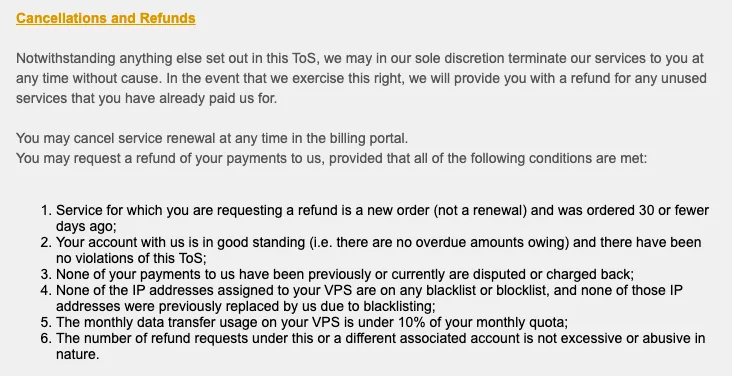
If you plan to spend those 30 days testing whether the program can connect to the exchange from this machine, missing any one of the six means you don't qualify for the refund. Three of them bear directly on a trial. Under condition 1, the 30 days run from the order date. Under condition 5, 10% of a 1 TB monthly quota is about 100 GB, so don't move large files onto the machine while testing. Under condition 6, refunding, buying again and refunding again enough times may mean you no longer qualify. Condition 4 depends on the IP assigned to the machine.
Current prices are on BandwagonHost's site. That is the affiliate link mentioned above, and the price you pay is the price on the order page.
API key IP restrictions: address limits, IP changes and read-only keys
How many IP addresses can I add to one API key? Can I list both my home IP and my VPS's IP?
OKX's API FAQ says “You can link up to 20 addresses per key,” so entering both is fine as far as the count goes. I'd enter only the one where the program actually runs: every extra address is one more place the key can be used from. For how many addresses a Binance key takes, check the page when you create the key.
Does an API key still work after my IP changes?
Not if the key has an IP restriction. The restriction still holds the old address, so requests the program sends from the new one don't match. You have to log in to the exchange and change the address to the new one before the program can place orders again. Separately, under the refund conditions in BandwagonHost's terms of service, a VPS whose IP they replaced because it landed on a blacklist doesn't meet the requirements for the 30-day refund.
Does a read-only API key need an IP restriction too?
On Binance, reading is the one permission an HMAC API key without an IP restriction can have, so a key used only for reading can go without one. On OKX, the keys the help page names as “automatically deleted after 14 days of inactivity” are the ones with trading or withdrawal permissions and no linked IP. The same page also says “Only read-only API keys bound to an IP or specific permissions will not expire,” so for a read-only key with no IP, go by the prompt shown when you create it. For a script that needs to read account data, I'd create a separate read-only key and keep it apart from the one used for placing orders. If the machine's IP is fixed, I'd enter it on this key all the same.